Graph
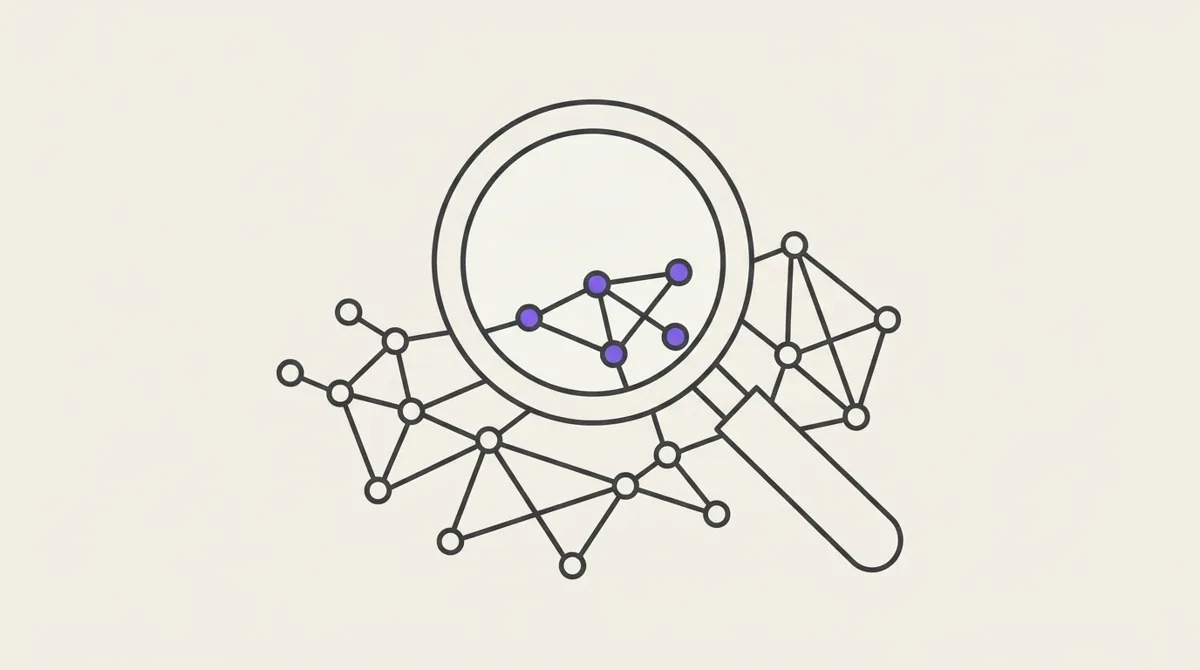
The graph shows your notes as dots and their connections as lines, so you can see the shape of what you know: which notes are hubs, which ideas cluster together, what you meant to write but never did. It lives in the web app at Graph.
What it shows is up to you — which notes, and what to draw — from the panel on the left. A way of looking you want again can be saved as a lens, and the graph can open on it.
This page is also available as plain Markdown at /docs/graph.md.
Reading the graph
| You see | It is |
|---|---|
| a small dot | a note; the more connections it has, the bigger it is |
| a line with an arrow | a link from one note to another, pointing at the note linked to; a note that links to another several times draws a thicker line |
| a large coloured dot | a tag, joined by faint lines to every note carrying it |
| a dashed outline | a note that is linked to but does not exist yet |
- Hover a dot to see its name and how many connections it has.
- Click a note for a preview with its cover, tags, the start of its text, and how many links go out and come in. Open note opens it.
- Drag to pan, scroll to zoom, and drag a dot to move it.
Titles appear once you zoom in, so a large graph stays readable.
Choosing what it shows
Two decisions shape the graph.
1. Which notes. The Notes section of the panel holds the filter. Filter opens the same builder views use, with tags, properties, title and dates in all, any and none groups (see Filters and views). Clear goes back to the whole workspace.
2. What to draw.
| Section | Setting | Draws |
|---|---|---|
| Connections | Links | lines between notes that link to each other (on by default) |
| Tags | tags as hubs joined to their notes (off by default) | |
| Show | Unconnected notes | notes with no line in the connections shown (off by default) |
| Notes not written yet | links to missing notes, as dashed outlines (off by default) | |
| Look | Arrows | arrowheads on link lines (on by default) |
| Titles | Zoomed (only once zoomed in), Always, or Never | |
| Note dots, Lines | colours for this device only, never saved |
A line is only drawn when both of its notes pass the filter. A link to a note outside it is left out, just as that note is.
Why unconnected notes are hidden by default
A Potion workspace is often a bookmark manager and a knowledge base at once: thousands of saved articles and videos that link to nothing, next to the notes you actually connected. Drawing every note buries the connected part under a cloud of lone dots. Turn Unconnected notes on when you want to see everything, or use a filter to narrow the graph first.
Saving a lens
A lens is those two decisions, saved under a name. The Saved section lists your lenses.
- Change anything and the active lens shows · edited, with Save changes to keep it. Switching lens without saving leaves the old one as it was.
- Save as keeps the current setup as a new lens. Names are unique within a workspace.
- The star marks the default lens, the one the graph opens on. Click another lens's star to make it the default. There is always exactly one: the first lens you save becomes it, and deleting it passes the star to the next lens.
- Rename and delete are on each lens. Deleting a lens deletes only the setup; no note, tag or link is touched.
The panel collapses with the « button, and the graph remembers whether it was open.
A lens belongs to one workspace. A link like /graph?lens=<id> opens the graph on that lens.
Ideas
| Lens | Notes | Draw |
|---|---|---|
| Second brain | whole workspace | Links |
| Film map | has all of #movie | Links and Tags |
| What to write next | whole workspace | Links, with Notes not written yet |
| This month's thinking | Updated within the last 30 days | Links, with Unconnected notes |
| Topic map | has any of #rust, #go, #zig | Tags only |
What a saved lens protects
- A tag or property that a lens filters on cannot be deleted until the lens stops using it, the same protection views get. Otherwise the lens would quietly start showing more notes than you set it up for. The refusal names the lens.
- Renaming a tag changes nothing, because a lens refers to it by identity.
- Trashed notes never appear, and restoring a note brings its links back.
With an AI
Through the MCP, an AI can set up and save the graph the same way you do: list_lenses, read_lens, create_lens, update_lens, edit_lens_scope and delete_lens. A lens it creates shows up in the panel straight away, and each tool returns a link that opens the graph on that lens. See The MCP.